AI-native development /
I Ditch Desktop AI Apps to Get More from My Coding-Agent Subscriptions
How I use Claude, Codex, Gemini, and other coding agents together through a terminal-native workflow built around herdr.
8 min read

As a solopreneur, I pay for several coding-agent subscriptions. Those agents are my engineering team.
Over the past few years, I subscribed to several top-tier desktop applications: Claude Desktop, ChatGPT Codex, Cursor, ZCode, and Google Antigravity. I wanted to use the agents I was already paying for, including agents from different providers, without adding separate metered API costs.
These GUI clients are impressive in isolation, but they keep each provider in its own window. My daily coding workflow gradually collapsed into chaos. I was constantly copying and pasting code between windows, losing track of implementations, and wasting time reconstructing context.
I returned to where I work best: the terminal. It gave me a common workspace for all those agents, but standard command-line tools alone did not solve the coordination problem. The workflow only came together when I integrated herdr.
Why I returned to the terminal
1. Get more value from existing subscriptions
Solopreneurs thrive on predictable overhead. We tend to prefer flat-rate coding subscriptions over metered, pay-per-use API keys.
Providers such as Anthropic and Google do not offer flat-rate subscription access through raw API keys. As a result, pay-per-token CLI wrappers such as Pi or OpenCode, along with desktop apps that depend on API billing, can become prohibitively expensive during large refactors or iterative agent loops.
2. Give multiple providers one workspace
There is no clean way for one desktop AI app to communicate directly with another.
MCP (Model Context Protocol) and custom plugins can bridge some gaps, but communication across proprietary desktop clients creates an N×M problem. The setup is time-consuming and fragile. You remain the manual router, copying code, errors, and prompts between isolated windows.
3. Coordinate worktrees in one place
Git worktrees make parallel development possible, but orchestrating several AI providers across GUI apps quickly becomes chaotic.
Each provider uses different workspace conventions, settings, and re-indexing rules. Managing a Claude worktree beside a Codex worktree means repeatedly finding physical directories and re-establishing context from scratch.
The landscape: tmux, cmux, and herdr
Terminal-native tools for cross-pane communication have evolved rapidly:
- tmux, with smux or tmux-bridge. The battle-tested classic. Modern community bridges let you script
tmux send-keysso agents can communicate across panes. Configuring keybindings, status bars, and IPC hooks still requires significant manual setup. - cmux. A native macOS terminal built on libghostty. It provides programmatic pane creation and browser automation through a Unix socket API. It is a strong option if you want native macOS tabs, but it is tied to the platform.
- herdr. A terminal workspace designed around coordinating several active agents without hiding their state.
Why herdr makes this practical
The terminal gave me the shared environment I wanted, but I still needed a simple way to coordinate agents across panes and worktrees. Tmux and cmux are both viable alternatives. I chose herdr because two features make multi-agent orchestration easier, while retaining tmux features such as remote access and persistent PTY sessions.
The Agent View state tracker
When four or five sub-agents are running across different worktrees, hunting through tabs to see which agent has finished, or which one is waiting for confirmation, is exhausting.
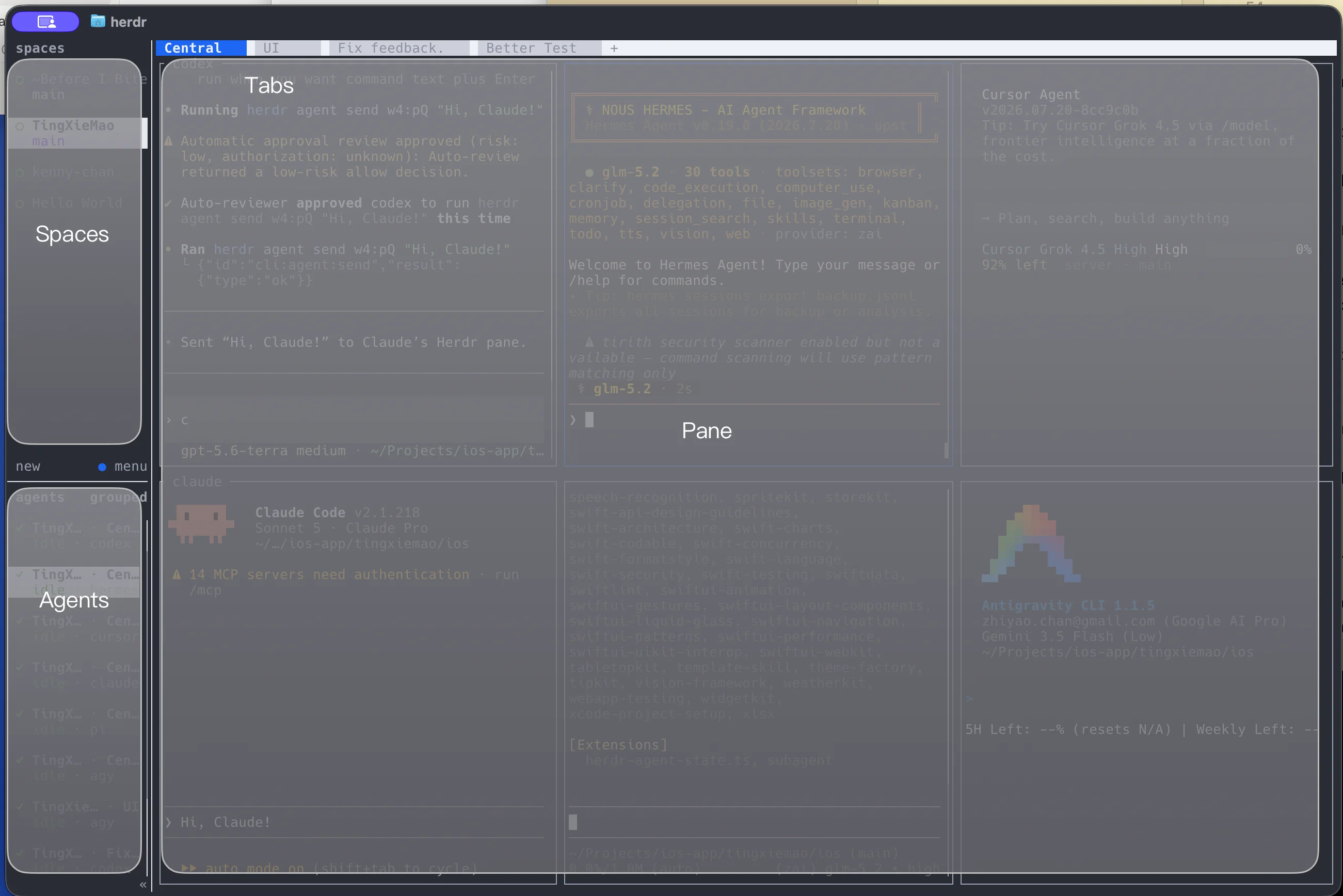
My herdr workspace is organized like this:
- Spaces represent different projects, where you can attach worktrees.
- Tabs represent different features.
- Panes sit within tabs; each one represents either an agent or a command line.
- Agents show which agents are generating, which are done, and which ones need your attention. Herdr also has built-in worktree support.
Out-of-the-box mouse support
There are no prefix keys such as Ctrl+B or complex key combinations required to switch context.
herdr enables intuitive mouse navigation by default: click to focus an agent pane, drag to resize a split, and scroll back through logs.
Quick setup: cross-pane, multi-agent orchestration
You do not need a complex configuration to start using cross-workspace communication. Set up an AI-agnostic CLI team in three steps.
1. Launch herdr in your terminal
Install herdr and start it inside your terminal of choice, such as Ghostty:
curl -fsSL https://herdr.dev/install.sh | sh
herdr
2. Enable the herdr agent skill
Install the herdr agent skill in your primary terminal session. This teaches your CLI agent how to handle herdr commands and discover the local socket API, so it can inspect and command other herdr panes:
npx skills add https://github.com/ogulcancelik/herdr --skill herdr3. Trigger cross-pane collaboration: Hello world
Open Claude, talk to Codex, in a herdr pane:
Claude > Use herdr codex and write “hello world”
Why multiple AI providers help
A good engineering team needs diverse backgrounds, mindsets, and training. You hire for diversity of perspective.
One engineer might focus relentlessly on edge-case safety, another on clean abstractions, and a third on raw execution speed. AI providers operate under a similar dynamic.
Models from Anthropic, OpenAI, Google, and other providers are trained and tuned differently. In practice, that gives them different working strengths.
Relying on a single desktop AI app constrains you to that model’s blind spots. Building reliable software benefits from a more diverse team.
My four daily solopreneur workflows in herdr
By combining Ghostty, herdr panes, and CLI agents such as claude, codex, and agy, I run a multi-agent development setup across four core workflows:
flowchart TD
    subgraph HERDR_PANE["HERDR PANE"]
        A["Architect / Planner<br/>(Opus)"]
        R["Reviewer / Inspector<br/>(5.6 Luna)"]
        I["Implementer<br/>(3.6 Flash)"]
        A -->|"Spawns and delegates"| I
        I -->|"Reviews code"| R
    end
1. Planning
Before writing code, I draft the implementation plan in Markdown. I open a herdr pane, spawn agent CLIs across several providers, and have them asynchronously audit the plan for edge cases, performance bottlenecks, and security flaws.
Execution begins only after those findings are incorporated.
2. Implementation through multi-AI orchestration
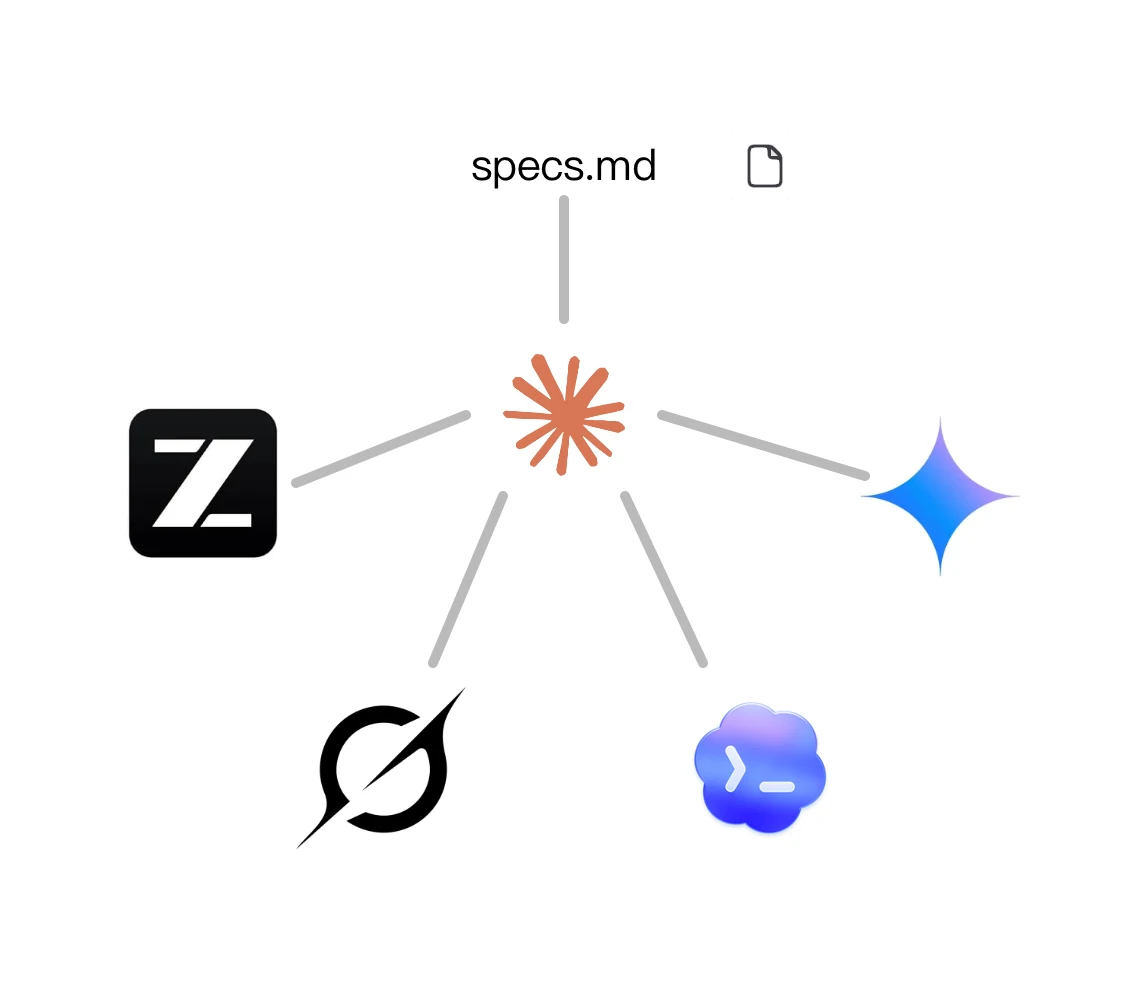
Once the plan is finalized, the lead agent breaks the specification into modular tasks.
Claude > Read the spec.md plan. Use herdr manage and delegate to Codex 5.6 Luna, Sonnet 4.6, GLM 5.2 using Pi, Grok 4.5, and Agy Flash 3.6. When implementation finishes, reconcile the output and review the code. If it does not meet expectations, ask them to do it again.
3. The review-to-PR loop
To enforce quality without manual copying and pasting, I pair two models: Claude Opus for deep code review and Codex Terra 5.6 for execution.
The prompt establishes an autonomous feedback loop:
Claude > Use herdr codex 5.6-terra to execute the fixes. Re-review the implementation and return it to 5.6-terra until no obvious defects remain. Once it is clean, push the PR. Make sure not to exceed 1 hour of runtime.
4. Debugging through a consultation swarm
When an agent gets stuck on a complex bug, I treat it like a developer asking a teammate for help rather than ending the session.
Codex > Bug X is still occurring. Use herdr Claude Opus 4.8 to discuss the stack trace, evaluate potential root causes, and report back with a verified fix.
When desktop AI apps still matter
Desktop AI apps have not lost all their value. I still keep a couple open for highly visual or turnkey workflows.
Instant visual and UX debugging
GUI apps excel when you need to fix a broken layout. Opening the in-built browser or the latest Claude iOS simulator, highlighting an element, and saying “Fix this alignment” is faster than describing pixel offsets in terminal prose with a screenshot.
Single-vendor simplicity
If your entire stack relies on one model, such as Claude or Cursor, a desktop app provides a clean, zero-configuration interface without terminal multiplexing or socket APIs.
Out-of-the-box scheduled tasks
Many desktop clients provide native background automation for tasks such as nightly dependency audits, monitoring GitHub Actions for failed builds, or running scheduled maintenance without custom cron scripts.
For quick visual changes and standalone tasks, desktop apps still have a place in my workflow. I returned to the terminal because I wanted more value from the coding-agent subscriptions I already pay for, while keeping the option to use several providers together.
Conclusion
Herdr gives me a practical way to run those agents in one workspace. The beauty of this setup is that I can keep working when one provider’s weekly quota runs out. I simply shift the next task to another agent by typing a command in the same workspace. I do not need to move files, reopen the project, or rebuild the context from scratch.
If you are paying for multiple coding agents but still using each one in a separate desktop app, you may not need another subscription or a complicated API setup. You may only need a shared terminal workspace that lets those agents work as a team.
A natural next improvement would be a library of skills for common handoffs: switching providers when a quota is exhausted, sending a bug to a specialist agent, requesting a second review, or reconciling competing implementations. Those skills would make multi-agent workflows easier to repeat and share with other developers.